
In the ever-evolving world of technology, the concept of having a personal AI assistant was once relegated to the realms of science fiction. However, with the advent of LM Studio, this futuristic idea has become an accessible reality for many.
LM Studio is a groundbreaking application that allows users to run local Large Language Models (LLMs) on their personal computers. This means that instead of relying on cloud-based services, individuals can now interact with powerful AI models directly from their desktops.
One of the most compelling reasons to use LM Studio is privacy. When you run an LLM locally, your data does not leave your machine, ensuring that your interactions remain confidential. This is a significant advantage for those who are cautious about sharing information with third-party servers.
Setting up LM Studio is a breeze, regardless of whether you’re using a Mac or Windows operating system. The requirements are straightforward: a compatible processor, sufficient RAM, and for PCs, a supported NVIDIA or AMD GPU. Once these requirements are met, you’re just a few steps away from having your own AI assistant.
The process begins with downloading LM Studio from its official website. After installation, users can choose from a variety of LLMs to download, such as Zephyr-7B or Google’s Gemma model. These models are designed for different tasks, and users can select one that best fits their needs.
Once the desired model is downloaded and set up, the magic begins. Users can converse with their AI assistant, ask questions, and even enable GPU acceleration for faster response times. LM Studio leverages the power of the user’s hardware to provide a smooth and responsive experience.
The implications of LM Studio are vast. It democratizes access to AI technology, allowing hobbyists, developers, and the curious to experiment and innovate. Whether it’s for personal use, education, or research, LM Studio opens up a world of possibilities for AI interaction on a personal level.
Installation
Head over to the LM studio website. https://lmstudio.ai/. Download the one for your operating system. i will show you ubuntu install and windows.
LInux
CD in to your downloads folder where your all AppImage is located or where ever you have placed it.
type: chmod +x – This will give it the permissions needed.
Then run: ./LM_Studio-0.2.18.AppImage
It should then load up and look like this:

Windows
Very similar steps. Download from https://lmstudio.ai/.
Once downloaded click executable and it will do it all for you.


Usage
In the search box type llama and then enter.
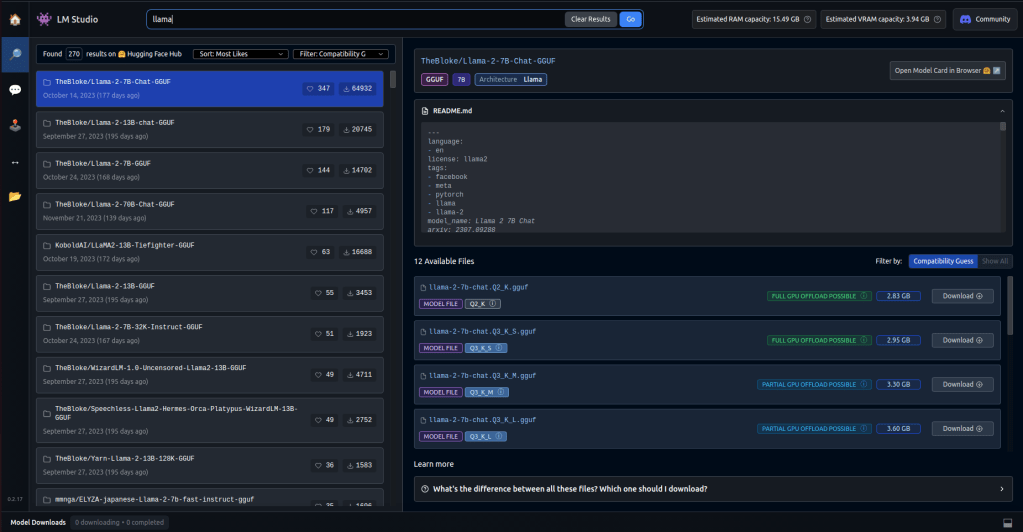
You will see this page. On the left are the different models. Bottom right are the different quantization and sizes. It tells you about quantization at the bottom of the page. When the colour is green it mean it is a good size for your computer taking into account RAM and hard-drive space. On my desktop i can currently install a 13B model, but no higher. You can play around with what you can install.
You can head over to https://huggingface.co/ to have a look at different models and come back to LM studio to look for them.
Now click download on a model.

Once completed go to the left side bar and click on the chat icon.
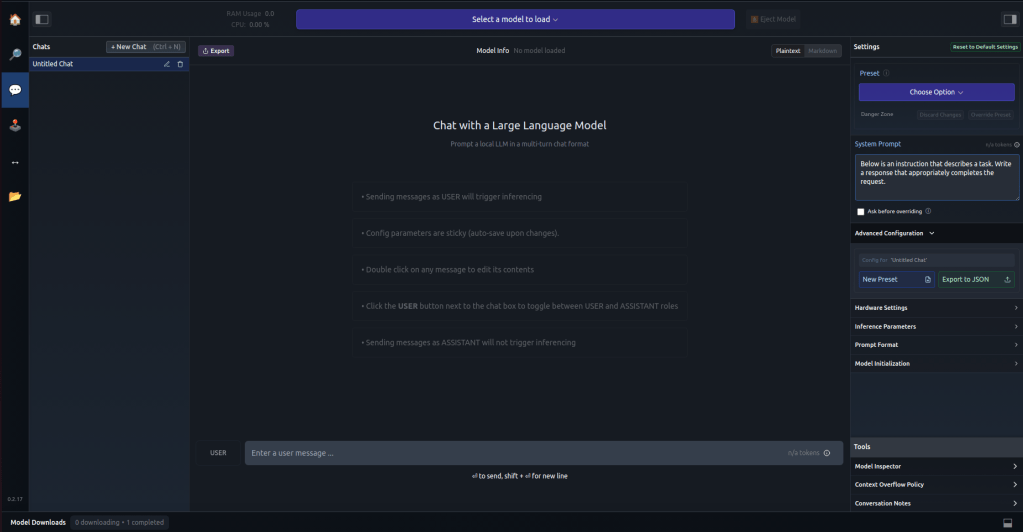
Go to the top where it says “select a model to load” and pick the one you downloaded. You are then ready to chat to the LLM.
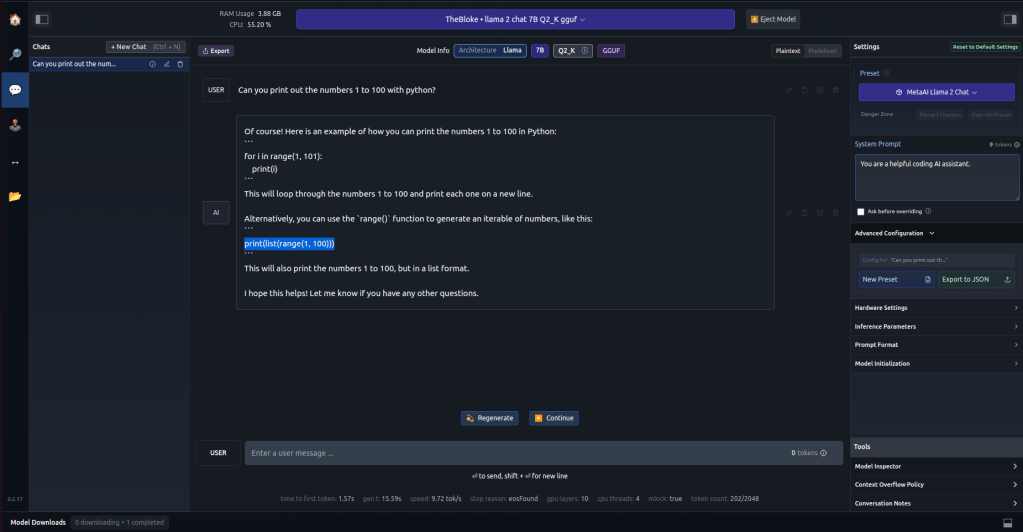
There are settings on the right of the chat which you can play around with and adapt to your needs.
In conclusion, LM Studio represents a significant step forward in personal computing. It offers a user-friendly interface, privacy-focused operation, and the freedom to explore the capabilities of AI without the need for cloud-based services. As AI continues to integrate into our daily lives, tools like LM Studio will play a pivotal role in shaping our interaction with technology.



 StealthCyberOps
Leave a comment